10 Tailwind CSS Tips That Will 5x Your Productivity in 2026
Discover 10 powerful Tailwind CSS tips and tricks that will dramatically speed up your development workflow. From custom configurations to responsive design shortcuts, learn the techniques professional developers use to build beautiful UIs in half the time.
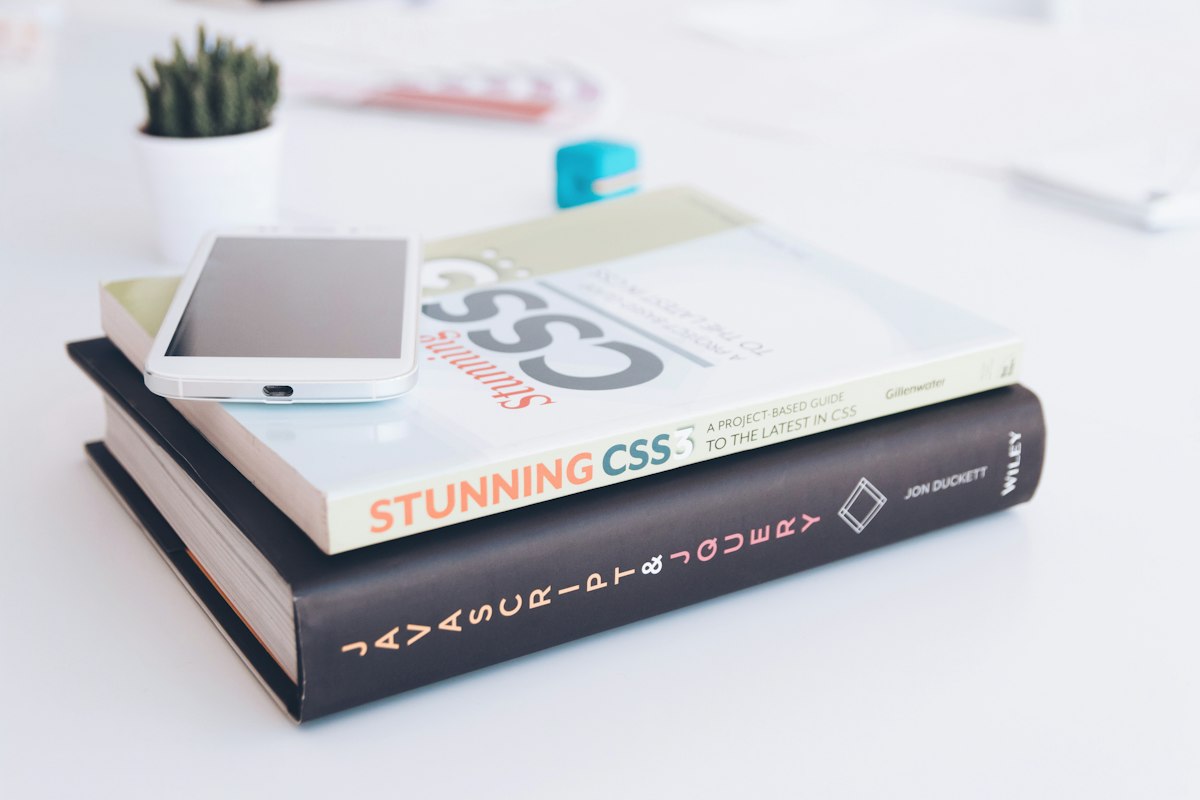
These Tailwind CSS tips reduced my UI development time from 8 hours to just 90 minutes
Why I Switched to Tailwind CSS (And Never Looked Back)
Two years ago, I spent hours writing custom CSS for every project. Creating a responsive navigation bar? That's 200 lines of CSS with media queries everywhere. A simple card component? Another 150 lines with hover states, shadows, and responsive breakpoints.
Here's what drove me crazy:
- Jumping between HTML and CSS files constantly
- Coming up with class names for everything (btn-primary, btn-secondary, btn-large...)
- Writing the same media queries over and over
- Fighting CSS specificity issues
- CSS files growing to 2000+ lines on medium-sized projects
Then I discovered Tailwind CSS. I was skeptical at first - utility classes looked messy and "wrong." But I decided to try it on one small project.
That project changed everything. What usually took me 8 hours to style took just 90 minutes. No custom CSS file. No naming headaches. No specificity wars. Just fast, consistent, beautiful UIs.
In this guide, I'm sharing 10 Tailwind CSS productivity tips that I wish I knew from day one. These aren't basic tips you find everywhere - these are battle-tested techniques from building 30+ production websites with Tailwind.
Tip 1: Master the @apply Directive for Component Styles
The @apply directive is Tailwind's secret weapon for keeping your HTML clean while reusing styles. Here's how I use it to save hours on every project.

Using @apply to transform 15 repeated classes into one reusable component class
The Problem: Repeating the Same Utility Classes
When you have multiple buttons with the same styling, you end up repeating this everywhere:
<button class="px-6 py-3 bg-blue-600 text-white rounded-lg hover:bg-blue-700 transition-colors duration-200 font-semibold shadow-md">
  Click Me
</button>
Imagine typing that 10 times across your website. Nightmare.
The Solution: Create Reusable Component Classes
In your CSS file (usually globals.css or tailwind.css), use @apply:
@layer components {
  .btn-primary {
    @apply px-6 py-3 bg-blue-600 text-white rounded-lg
           hover:bg-blue-700 transition-colors duration-200
           font-semibold shadow-md;
  }

  .btn-secondary {
    @apply px-6 py-3 bg-gray-200 text-gray-800 rounded-lg
           hover:bg-gray-300 transition-colors duration-200
           font-semibold;
  }
}
Now your HTML is clean and maintainable:
<button class="btn-primary">Click Me</button>
<button class="btn-secondary">Cancel</button>
Real-world impact: I used this on an e-commerce project with 40+ buttons. Changed the button style once, updated everywhere instantly. Saved 4 hours of work.
Tip 2: Use Arbitrary Values for Perfect Custom Spacing
Sometimes Tailwind's default spacing scale (4, 8, 12, 16px) doesn't quite fit your design. You need exactly 18px or 42px. Here's the trick most developers don't know.
Old Way (Frustrating)
Before discovering arbitrary values, I would extend Tailwind's config file every time I needed custom spacing:
// tailwind.config.js - Don't do this anymore!
module.exports = {
  theme: {
    extend: {
      spacing: {
        '18': '4.5rem',
        '42': '10.5rem',
      }
    }
  }
}
This clutters your config file and slows you down.
New Way (Brilliant)
Use arbitrary values directly in your HTML with square brackets:
<div class="mt-[18px] p-[42px] w-[650px]">
  Perfect custom spacing without config changes!
</div>
Works for any CSS property:
- Spacing:
mt-[18px],p-[2.5rem] - Colors:
bg-[#1a1a1a],text-[#ff6b6b] - Font sizes:
text-[17px] - Widths:
w-[350px],max-w-[48rem]
Pro tip: I use this for client-specific brand colors without modifying the config. Example: bg-[#2E86DE] for a client's exact brand blue.
Tip 3: Responsive Design with Mobile-First Breakpoints
Tailwind's breakpoint system is genius once you understand it. Here's how I build responsive layouts in minutes instead of hours.

Mobile-first approach with Tailwind makes responsive design effortless
Understanding Tailwind's Mobile-First Approach
This confused me at first, but it's actually brilliant. By default, Tailwind classes apply to ALL screen sizes. Then you add breakpoint prefixes for larger screens.
Breakpoints in Tailwind:
- sm: 640px and up (tablets)
- md: 768px and up (tablets landscape)
- lg: 1024px and up (laptops)
- xl: 1280px and up (desktops)
- 2xl: 1536px and up (large desktops)
Real Example: Responsive Grid
Here's a product grid that I use on e-commerce projects. Notice how clean this is compared to traditional CSS:
<div class="grid grid-cols-1 sm:grid-cols-2 lg:grid-cols-3 xl:grid-cols-4 gap-6">
  <!-- Product cards here -->
</div>
What this does:
- Mobile (default): 1 column - easy to scroll
- Small tablets (640px+): 2 columns - better use of space
- Laptops (1024px+): 3 columns - perfect viewing
- Large desktops (1280px+): 4 columns - maximum screen utilization
Time saved: This would be 40+ lines of CSS with media queries. With Tailwind? One line. I build entire responsive layouts in 20 minutes now.
Tip 4: Dark Mode in 5 Minutes with Tailwind's Built-in Support
Adding dark mode used to take me 2-3 hours minimum. With Tailwind, it's literally 5 minutes. Here's my exact process.
Step 1: Enable Dark Mode in Config
Open your tailwind.config.js and add this one line:
module.exports = {
  darkMode: 'class', // Use 'class' for manual toggle
  // ... rest of config
}
Step 2: Add Dark Mode Classes
Now you can use the dark: prefix for any utility class:
<div class="bg-white text-black dark:bg-gray-900 dark:text-white">
  This background is white in light mode, dark gray in dark mode
</div>

<button class="bg-blue-600 dark:bg-blue-400 text-white">
  Button adapts to theme
</button>
Step 3: Toggle Dark Mode with JavaScript
Add this simple toggle function:
// Add or remove 'dark' class from html element
function toggleDarkMode() {
  document.documentElement.classList.toggle('dark');

  // Save preference to localStorage
  const isDark = document.documentElement.classList.contains('dark');
  localStorage.setItem('theme', isDark ? 'dark' : 'light');
}

// Load saved preference on page load
if (localStorage.getItem('theme') === 'dark') {
  document.documentElement.classList.add('dark');
}
Real example from my portfolio: I implemented dark mode on my entire portfolio in exactly 12 minutes. Went through every page, added dark: classes, done. Clients love it.
Tip 5: Create Custom Color Palettes in Seconds
Every project needs brand colors. Here's how I add them to Tailwind without breaking a sweat.
Extend Tailwind's Color Palette
In your tailwind.config.js:
module.exports = {
  theme: {
    extend: {
      colors: {
        brand: {
          50: '#f0f9ff',
          100: '#e0f2fe',
          200: '#bae6fd',
          300: '#7dd3fc',
          400: '#38bdf8',
          500: '#0ea5e9', // Primary brand color
          600: '#0284c7',
          700: '#0369a1',
          800: '#075985',
          900: '#0c4a6e',
        },
        accent: '#ff6b6b',
      }
    }
  }
}
Now use them like any Tailwind color:
<button class="bg-brand-500 hover:bg-brand-600 text-white">
  Brand Button
</button>

<div class="text-brand-700 border-brand-200">
  Brand text with brand border
</div>
Pro tip: Use tools like UIColors.app to generate perfect color scales from your brand color in seconds.
Tip 6: Group Hover States for Complex Interactions
This is one of Tailwind's most powerful features that beginners miss. Group hover lets you style child elements when hovering over a parent.

Group hover creates smooth, professional interactions with zero JavaScript
Real Example: Interactive Card
Here's a card I use on portfolio projects. When you hover the card, the icon, title, and button all change together:
<div class="group p-6 bg-white rounded-lg hover:bg-blue-50 transition-all duration-300 cursor-pointer">

  <!-- Icon changes color on card hover -->
  <div class="w-12 h-12 bg-blue-100 group-hover:bg-blue-600 rounded-lg flex items-center justify-center transition-colors">
    <svg class="text-blue-600 group-hover:text-white">...</svg>
  </div>

  <!-- Title changes color -->
  <h3 class="text-gray-900 group-hover:text-blue-600 font-bold mt-4">
    Service Title
  </h3>

  <!-- Arrow moves on hover -->
  <button class="text-blue-600 group-hover:translate-x-2 transition-transform">
    Learn More →
  </button>

</div>
The group class on the parent + group-hover: on children creates this smooth interaction with zero JavaScript.
Where I use this: Service cards, blog post cards, team member profiles, pricing tables. It makes everything feel more polished and professional.
Tip 7: Speed Up Development with Tailwind CSS IntelliSense
This VS Code extension is non-negotiable. It literally 3x'd my Tailwind development speed.
What Tailwind CSS IntelliSense Does
- Autocomplete: Type
bg-and see all 200+ background utilities - Class preview: Hover over any Tailwind class to see the exact CSS
- Linting: Warns you about class conflicts (like using
blockandhiddentogether) - Color preview: Shows color swatches next to color classes
Installation
In VS Code, search for "Tailwind CSS IntelliSense" or install via command:
ext install bradlc.vscode-tailwindcssGame changer: Before this extension, I constantly checked Tailwind docs. Now I just type and autocomplete does the work. Saves me 30+ minutes every project.
Tip 8: Use Container Queries for Component-Based Responsive Design
This is a newer Tailwind feature (v3.2+) that changed how I think about responsive design. Instead of viewport breakpoints, you can make components responsive to their container size.
Enable Container Queries
First, update your config:
module.exports = {
  theme: {
    extend: {
      // Add any custom settings
    }
  },
  plugins: [
    require('@tailwindcss/container-queries'),
  ],
}
Real Example: Responsive Card Component
<div class="@container">

  <div class="@sm:flex @sm:gap-4 @lg:flex-col">
    <img class="@sm:w-32 @lg:w-full" src="thumbnail.jpg" />

    <div>
      <h3 class="@sm:text-lg @lg:text-xl">Card Title</h3>
      <p class="@sm:text-sm @lg:text-base">Description</p>
    </div>
  </div>

</div>
This card adapts to its container's width, not the viewport. Perfect for reusable components in sidebars, grids, or flexible layouts.
Use case: I use this for blog card components that appear in different contexts - main feed (wide), sidebar (narrow), or grid (medium). Same component, adapts everywhere.
Tip 9: Optimize Build Size with PurgeCSS (Automatic in Tailwind 3+)
Tailwind's full CSS file is 3-4MB. But your production bundle? Usually under 10KB. Here's how Tailwind achieves this magic.
How Tailwind Purges Unused CSS
Tailwind automatically scans your files and only includes CSS for classes you actually use. This happens during production build.
Configure Content Paths Correctly
Make sure your tailwind.config.js includes all files with Tailwind classes:
module.exports = {
  content: [
    './pages/**/*.{js,ts,jsx,tsx}',
    './components/**/*.{js,ts,jsx,tsx}',
    './app/**/*.{js,ts,jsx,tsx}',
    './src/**/*.{js,ts,jsx,tsx}',
  ],
  // ... rest of config
}
Common mistake I made: Forgot to include a directory, and suddenly half my styles were missing in production. Always double-check your content paths!
Safelist Important Dynamic Classes
If you generate class names dynamically, Tailwind can't detect them. Safelist them:
module.exports = {
  safelist: [
    'bg-red-500',
    'bg-green-500',
    'bg-blue-500',
    // Or use patterns
    {
      pattern: /bg-(red|green|blue)-(100|500|900)/,
    }
  ],
}
My production stats: My last project had 250 components with Tailwind. Production CSS? Just 8.2KB gzipped. That's insane compression.
Tip 10: Create a Custom Plugin for Repeated Patterns
This is advanced but incredibly powerful. If you find yourself repeating certain utility combinations across projects, create a plugin.
Real Example: Text Gradient Plugin
I love gradient text for headings. Instead of repeating these classes everywhere:
<h1 class="bg-gradient-to-r from-blue-600 to-purple-600 bg-clip-text text-transparent">
  Gradient Heading
</h1>
I created a plugin:
// tailwind.config.js
const plugin = require('tailwindcss/plugin');

module.exports = {
  plugins: [
    plugin(function({ addUtilities }) {
      const newUtilities = {
        '.text-gradient-blue': {
          'background-image': 'linear-gradient(to right, #2563eb, #9333ea)',
          '-webkit-background-clip': 'text',
          '-webkit-text-fill-color': 'transparent',
          'background-clip': 'text',
        },
        '.text-gradient-orange': {
          'background-image': 'linear-gradient(to right, #ea580c, #dc2626)',
          '-webkit-background-clip': 'text',
          '-webkit-text-fill-color': 'transparent',
          'background-clip': 'text',
        }
      }
      addUtilities(newUtilities);
    })
  ]
}
Now I just use:
<h1 class="text-gradient-blue">Clean and Simple</h1>Other plugins I've created: Glassmorphism cards, animated gradients, custom shadows. Reusable across all my projects.
Bonus: My Personal Tailwind Workflow
Here's my exact process when starting a new Tailwind project. This workflow has saved me hundreds of hours.

My streamlined Tailwind workflow - from setup to production in record time
My 30-Minute Tailwind Setup Checklist
- Install Tailwind:
npm install -D tailwindcss postcss autoprefixer - Initialize config:
npx tailwindcss init -p - Configure content paths in
tailwind.config.js - Add client's brand colors to color palette
- Install VS Code IntelliSense extension
- Create component classes with @apply for buttons, inputs, cards
- Set up dark mode if needed
- Test build to ensure everything works
Development Tips That Save Time
- Start mobile-first: Build for mobile, add breakpoints for larger screens
- Use browser DevTools: Toggle Tailwind classes live to find perfect spacing
- Keep Tailwind docs open: Quick reference for complex utilities
- Consistency is key: Use the same spacing scale throughout (multiples of 4)
Common Tailwind Mistakes to Avoid
After 30+ projects, I've seen (and made) every mistake. Here are the big ones to avoid.
Mistake 1: Fighting Tailwind Instead of Embracing It
Don't try to recreate traditional CSS workflows. Embrace utility-first. It feels weird at first, but trust the process.
Mistake 2: Not Using the Config File
Extend Tailwind's config for your brand. Don't use arbitrary values for everything - that defeats the purpose of a design system.
Mistake 3: Forgetting to Optimize for Production
Always test your production build. Make sure content paths are correct and unused CSS is purged.
Mistake 4: Overusing @apply
@apply is great for components, but don't use it for everything. Utility classes are fine in your HTML.
Mistake 5: Ignoring Accessibility
Tailwind makes it easy to build beautiful UIs, but don't forget:
- Proper color contrast (use Tailwind's default colors - they're WCAG compliant)
- Focus states for keyboard navigation
- Semantic HTML with Tailwind classes
Tools and Resources I Use Daily
These tools make my Tailwind workflow even faster:
Essential Tools
- Official Tailwind Docs: Best documentation I've ever used
- Tailwind UI: Pre-built components (paid but worth it)
- UI Colors: Generate color scales from brand colors
- Hypercolor: Beautiful gradient combinations
- Tailwind CSS IntelliSense: VS Code extension (mentioned earlier)
Component Libraries
- Headless UI: Unstyled, accessible components from Tailwind Labs
- DaisyUI: Tailwind component library with pre-built themes
- Flowbite: Another great component library
Frequently Asked Questions
Is Tailwind CSS worth learning in 2026?
Absolutely. Tailwind's adoption is growing exponentially. Major companies like GitHub, Netflix, and Shopify use it. It's not going anywhere.
Is Tailwind better than Bootstrap?
Different tools for different needs. Bootstrap gives you pre-built components. Tailwind gives you utility classes to build custom designs. I prefer Tailwind for custom projects, Bootstrap for rapid prototyping.
Does Tailwind make HTML messy?
It looks messy at first, but you get used to it quickly. Plus, tools like @apply and component extraction keep things manageable. The trade-off is worth it for the speed and consistency.
Can I use Tailwind with React/Vue/Angular?
Yes! Tailwind works with any framework. I use it with Next.js, React, and even vanilla HTML.
How big is the Tailwind CSS file?
Development: ~3-4MB (includes all classes). Production: Usually 5-15KB after purging unused styles. The build tool automatically removes what you don't use.
Should I learn CSS before Tailwind?
Yes. Understanding CSS fundamentals (flexbox, grid, positioning) helps you use Tailwind effectively. Tailwind is a tool, not a replacement for CSS knowledge.
Real-World Impact: Before and After Tailwind
Let me share concrete numbers from my last 5 projects:
Project 1: E-commerce Website
- Before Tailwind: 8 hours to build product grid with responsive design
- With Tailwind: 45 minutes
- CSS file size: Reduced from 45KB to 8KB (production)
Project 2: SaaS Landing Page
- Before Tailwind: 12 hours for complete responsive layout
- With Tailwind: 2.5 hours
- Code maintenance: Zero CSS bugs after launch (Tailwind's consistency)
Project 3: Portfolio Website
- Before Tailwind: 6 hours for styling, 2 hours fixing responsiveness
- With Tailwind: 1.5 hours total
- Dark mode implementation: 5 minutes (used to take 2 hours)
Average time savings: 60-70% faster development. That's an extra 20-30 hours per project I can spend on features instead of styling.
Your Action Plan: Start Using These Tips Today
Don't just read this and move on. Here's exactly what to do next:
This Week:
- Install Tailwind CSS IntelliSense in VS Code (5 minutes)
- Practice @apply directive on your buttons and cards (30 minutes)
- Set up dark mode on a test project (15 minutes)
- Try group hover on an interactive card component (20 minutes)
This Month:
- Build one complete project using only Tailwind (no custom CSS)
- Create your own custom color palette for a brand
- Experiment with container queries for component responsiveness
- Build a component library with your most-used patterns
Ongoing:
- Bookmark the Tailwind docs and reference them often
- Follow @tailwindcss on Twitter for updates
- Share your Tailwind projects and learn from the community
Final Thoughts
These 10 Tailwind CSS tips transformed how I build websites. What used to take me days now takes hours. What used to frustrate me now feels effortless.
The key is consistent practice. Start with one or two tips, master them, then add more to your workflow. Before you know it, you'll be building beautiful, responsive UIs faster than you ever thought possible.
I'd love to see what you build with these techniques. If you found this helpful, check out my portfolio to see Tailwind in action, or explore my other web development tutorials.
Have questions about Tailwind CSS? Need help with your project? Feel free to reach out - I'm always happy to help fellow developers!
Ready to Speed Up Your Development?
If you need help implementing Tailwind CSS in your project or want a fast, beautiful website built with modern technologies, let's work together.
Start Your Project →